Generative AI
16 Minute
Mastering Kling O1 Elements Feature: Create Consistent AI Videos Like a Pro
Hey there, we’re an AI Video Production Company, blending cutting-edge tech with storytelling for brands. If you’re looking for creating videos using Kling O1, you know the pain of inconsistent characters in AI videos – it’s like herding cats. That’s why Kling AI’s Elements feature (rolled out in the 1.6+ model updates) blew our minds. It lets you upload images of characters, objects, or backgrounds and keeps them rock-solid consistent across clips.
We’ve been testing it non-stop with tools like Veo 3 and Kling AI for client campaigns, and it’s a game-changer for series-style videos. Want proof? Check out this quick demo video we generated using Elements – just uploaded a single image and 6 elements, turned into a crazy video as shown below.
In this post, we’ll walk you through how to use Kling AI Elements step-by-step, share pro tips from our workflows, and explain why it’s miles ahead of older methods.
What Makes Kling AI Elements a Must-Try for Consistent AI Videos?
Before diving in, let’s talk real results. Traditional AI video generators like early Kling versions struggled with character consistency – same face, different outfits or poses every time. Elements fixes that by locking in your uploaded images.
Key perks we’ve seen in action:
- Unwavering Consistency: Characters, outfits, and objects remain perfectly matched across every video clip.
- Multi-element Magic: Mix up to four images (like a lead character + signature accessory + vehicle + environment) to craft intricate, cohesive scenes.
- Filmmaker-Friendly: Mimics pro production techniques, perfect for storytelling in ads or social series.
It’s not just hype – our demo above shows a consistent driver in a racing scene, no morphing mishaps.
Step-by-Step: How to Use Kling AI Elements (Our Exact Workflow)
Getting started is dead simple, and we’ve streamlined it for our daily client work. Here’s how we do it every time.
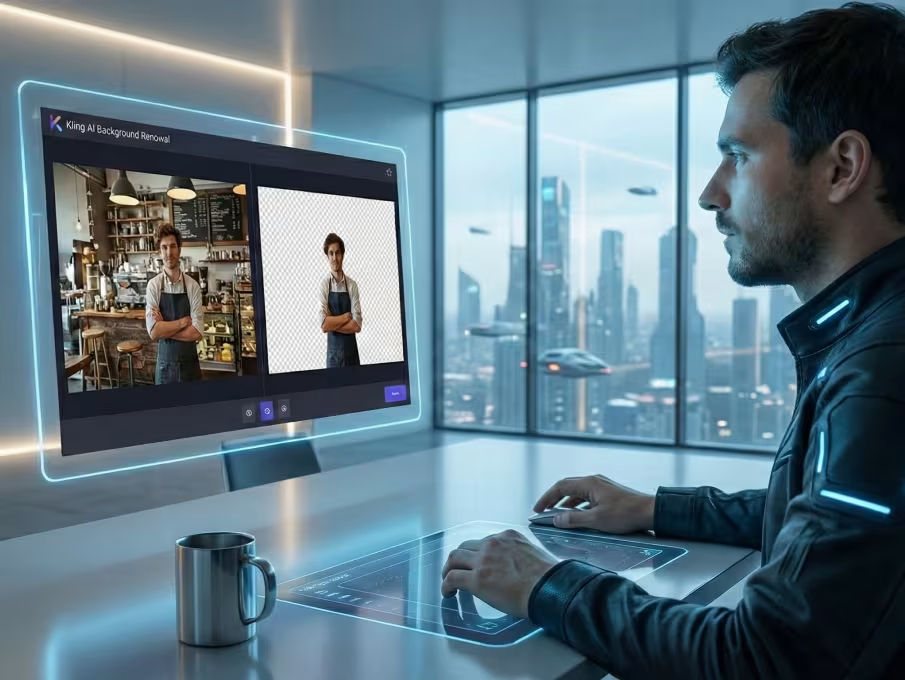
- Access the Feature: Log into KlingAI O1, head to AI Videos > Image to Video, and select Elements. (Pro tip: Use the latest model for best results.)
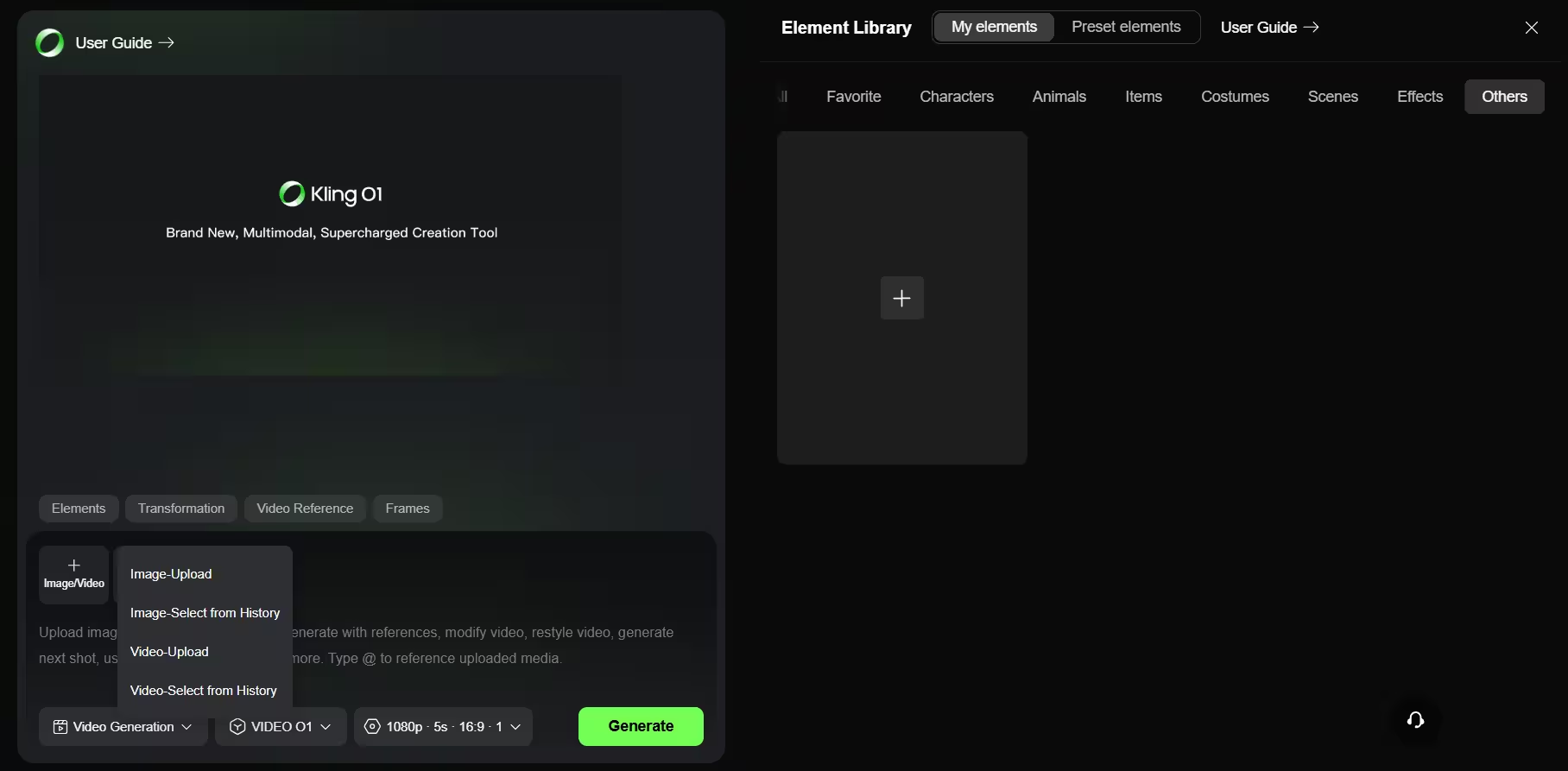
- Upload Your Images: Drop in up to four high-quality image. We always pick front-facing shots for characters – like a clear photo of a model for that luxury brand vibe.
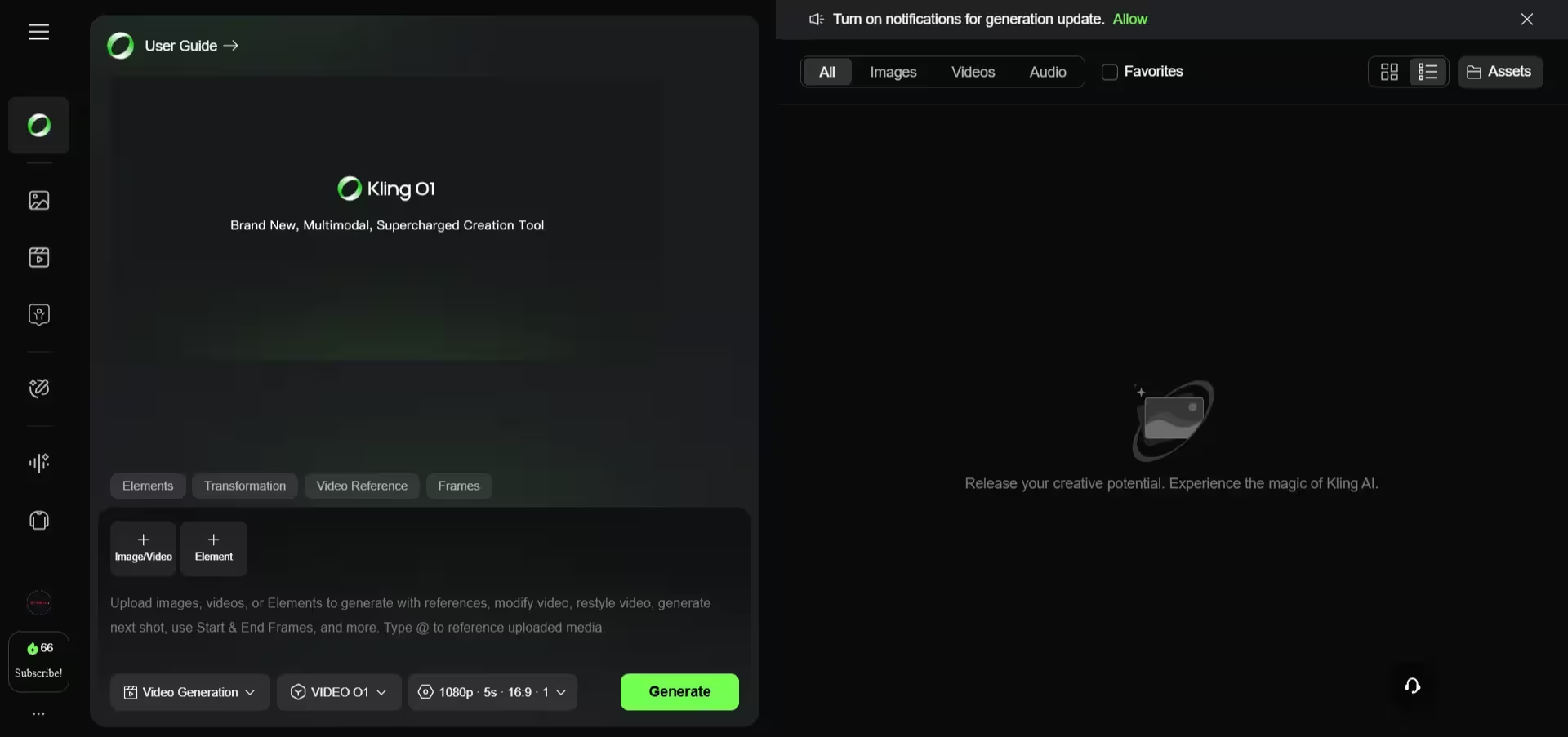
- Add Elements: Now you need to select the elements you want to add it to the video. For that you can select from the list provided by Kling or you can upload or build customized elements by selecting My Elements section.
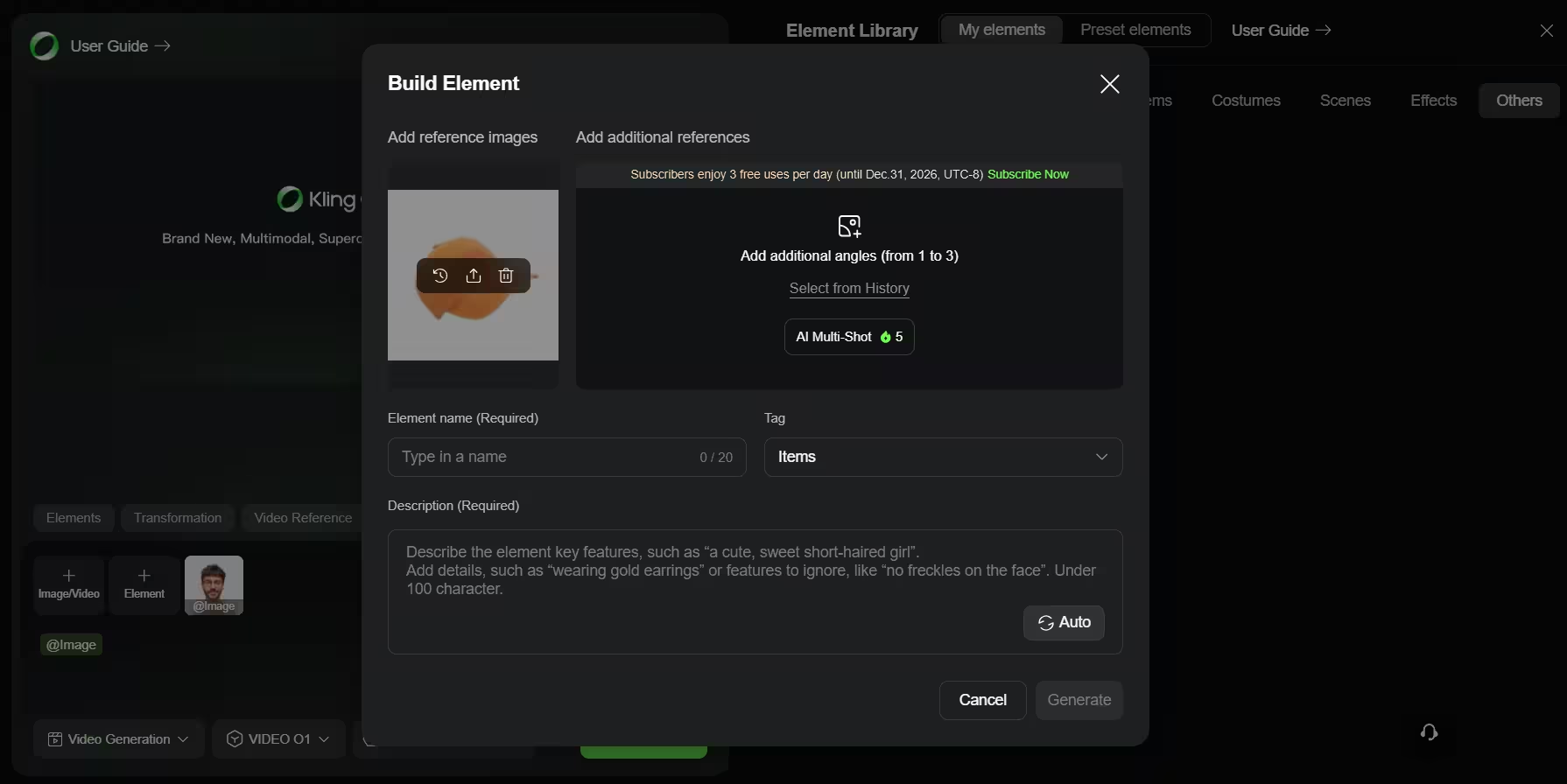
- Craft Your Prompt: Describe the action first, naming your elements explicitly. Example from our demo: “Element1 puts on the glasses from image1, the t-shirt from image2, trouser from image3, watch from image4, hat from image5 and shoes from image6”.
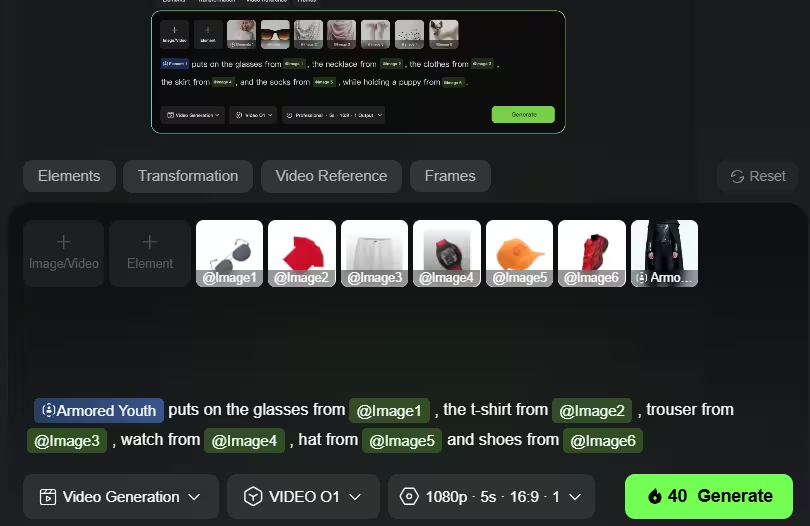
- Tweak Settings: Pick Standard (faster) or Professional mode, set duration (3-10s), and aspect ratio (16:9 for YouTube, 9:16 for TikTok/Reels).
- Hit Generate: It costs 50 credits and takes 3-5 minutes. Refine with negative prompts like “no blur, no distortion, no extra limbs” if needed.
Boom – consistent video magic. Our first try on the demo nailed it after one tweak.
Elements vs. Multi-Elements: Which to Use When?
New users mix these up, so here’s the quick breakdown from our tests:
- Elements (1.6/1.7): Builds fresh videos from your images. Ideal for new scenes with consistent elements.
- Multi-Elements (Inpainting): Edits existing videos – remove objects from video using Kling o1 or swap/add/delete for quick fixes.
Use Elements for starting series; switch to Multi for fixes. Together, they’re our secret for polished B2B marketing videos.
Our Top Tips for Kling AI Elements Success (Lessons from 50+ Generates)
We’ve burned credits experimenting, so trust these:
- Quality In, Quality Out: Sharp, well-lit images = flawless consistency. Avoid busy backgrounds.
- Prompt Like a Storyteller: Lead with elements, add motion/emotion. Iterate 2-3 times – patience pays off.
- Negative Prompts Rule: “Blurry face, deformed hands, low quality” keeps things pro.
- Combine with Other Tools: Pair with Veo3 ingredients to video or Flow for scripts, then Elements for visuals – our go-to for client campaigns.
For character consistency, front-facing uploads are non-negotiable. See the difference in our demo!
Why Kling AI Elements is Revolutionizing AI Video Production
As a team that’s scripted luxury car ads and powered through client campaigns, Elements feels like pro filmmaking on demand. It’s empowering creators like us to deliver brand-consistent stories without massive budgets. Localize prompts for cultural vibes, and you’re golden.
If you’re in digital marketing or AI video, drop Elements into your toolkit today. It’s already cut our revision time in half.
What Kling AI project are you tackling next? Hit us up in the comments – we’d love to brainstorm!
Getting started is dead simple, and we’ve streamlined it for our daily client work. As an AI Video Production Company teams and our partners in London, Belgium, Switzerland, and India use daily, we know exactly how to squeeze the most out of every credit.